
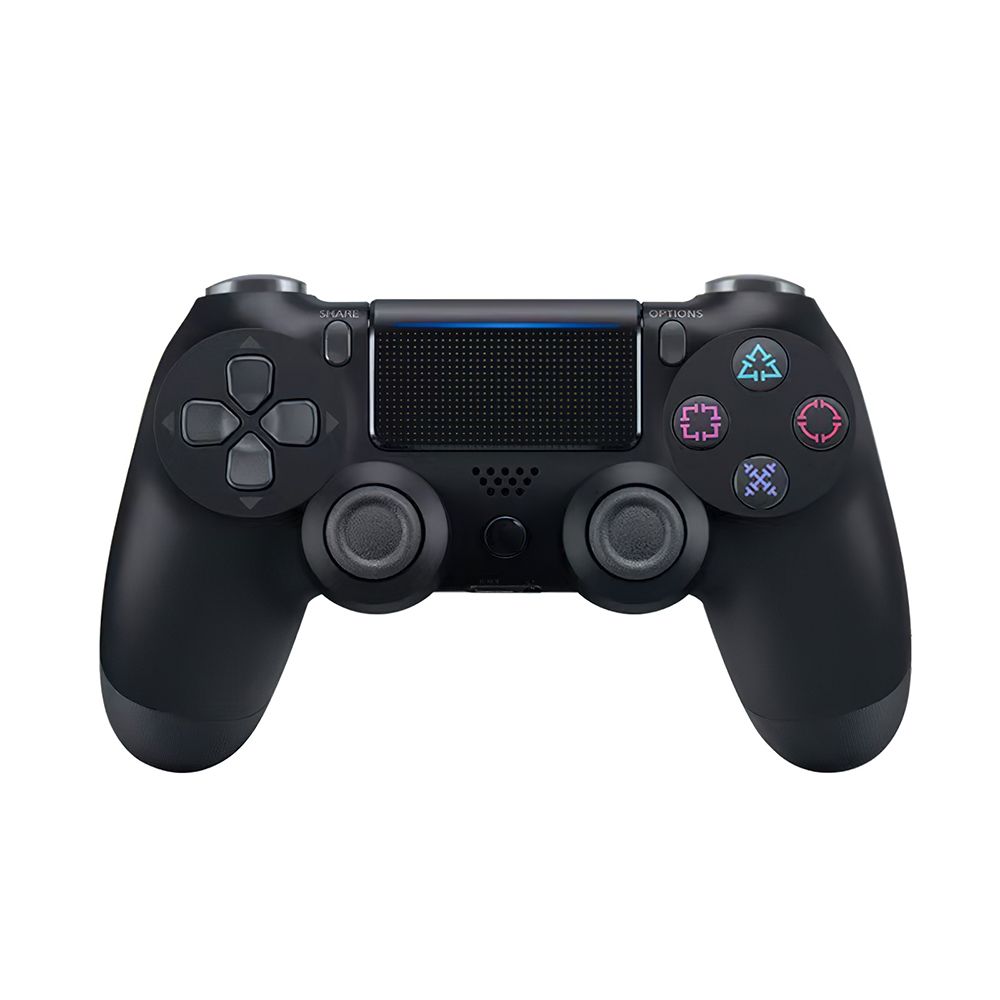
Wireless Gamepad WALKER WPS-401 black 2710000330585 2710000330585 Show all products/WALKER/Show all products WALKER/Other accessories WALKER/Gadgets/Wireless Gamepad Wireless Gamepad WALKER WPS-401 black
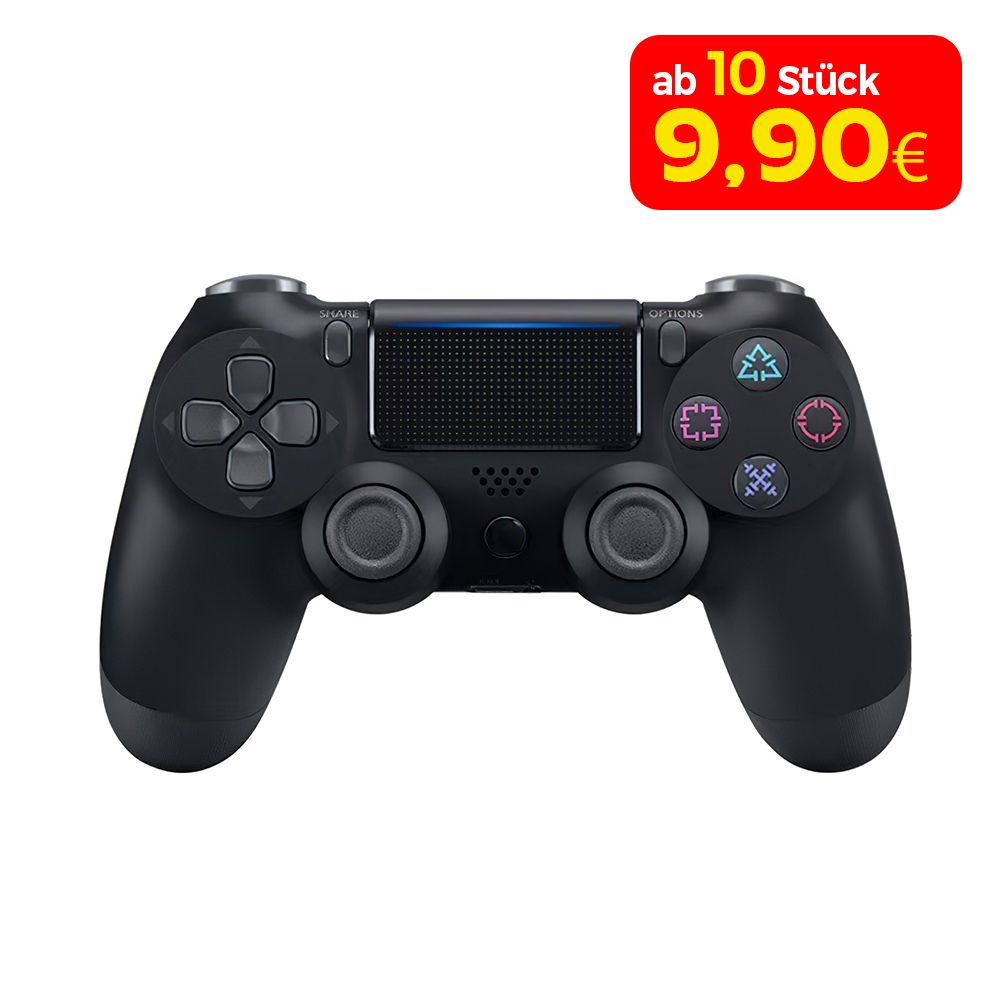
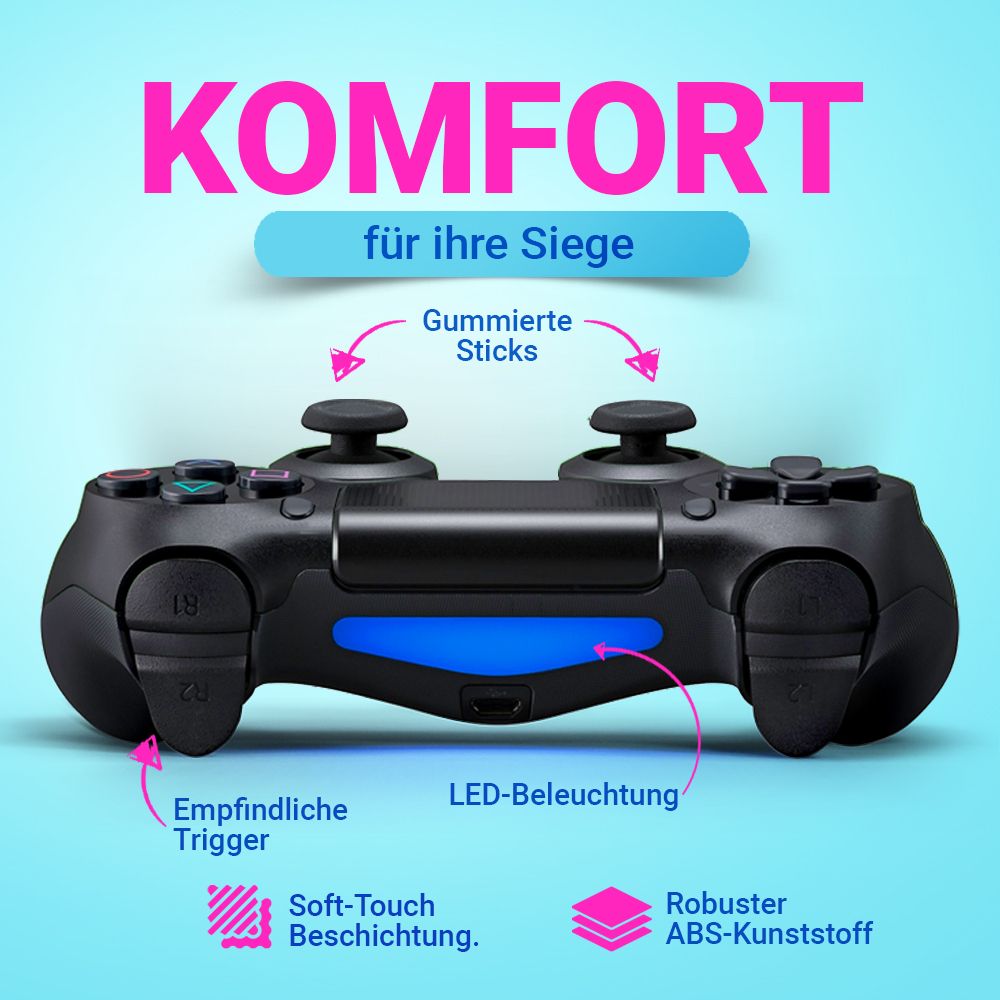
Comfortable, versatile gamepad for modern gamers
Light indication
The gamepad is equipped with LED lighting that changes color depending on the game status, connection type, or selected mode. This not only adds to the aesthetics, but also makes gameplay more intuitive.
Share button
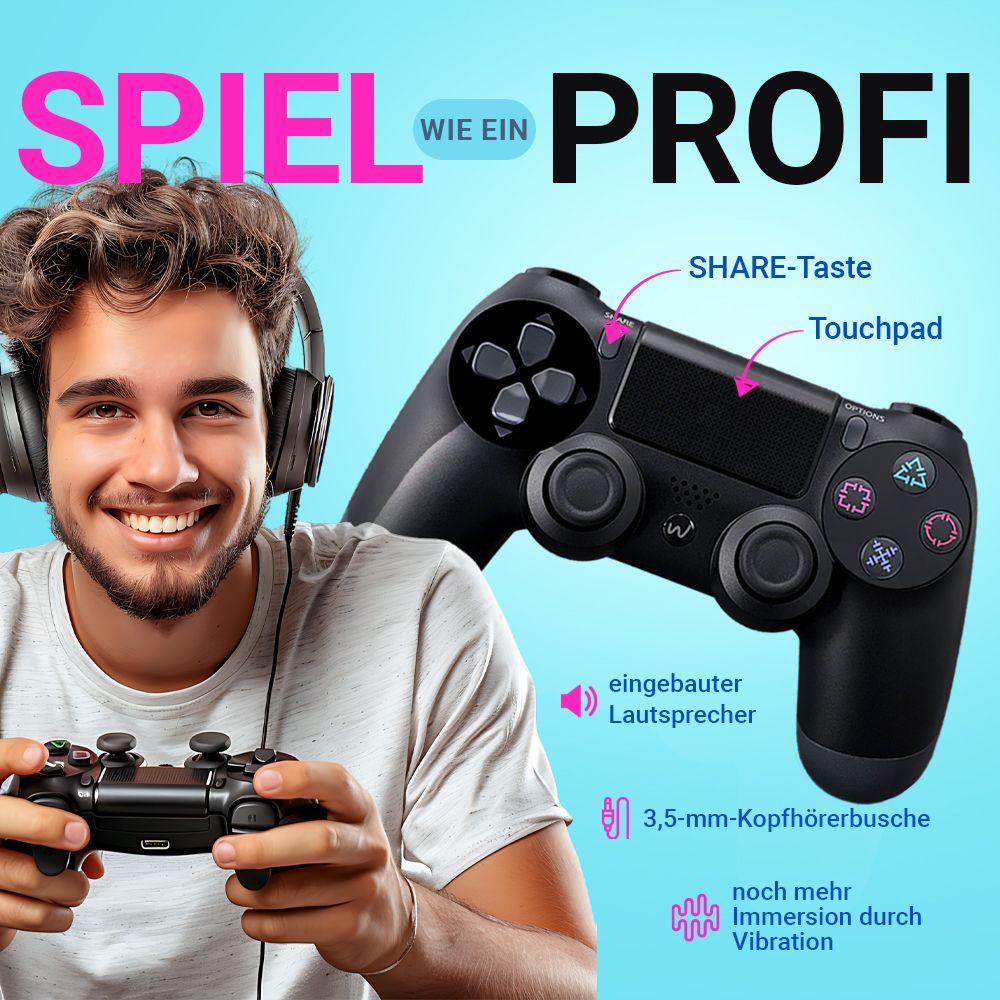
Take screenshots, record videos, or start streaming with just one click. The SHARE button provides easy access to creating content from the game, just like on the official Sony gamepad.
Touchpad
Tactile control right from the panel. Responds to gestures, touches, and scrolling — supported in many modern PS4 games. This feature is familiar to players who have already used DualShock.
Gesture and motion support
A built-in accelerometer and gyroscope allow the gamepad to track the user's movements and gestures, adding another layer of interactivity.
Built-in speaker
A separate audio channel for additional game effects. Allows you to hear unique sounds directly from the gamepad, such as signals or voice prompts.
Vibration function
Two independent vibration motors provide clear feedback. The realistic feel of explosions, hits, or collisions enhances the immersive gaming experience.
Dual connection: Bluetooth 5.1 + USB
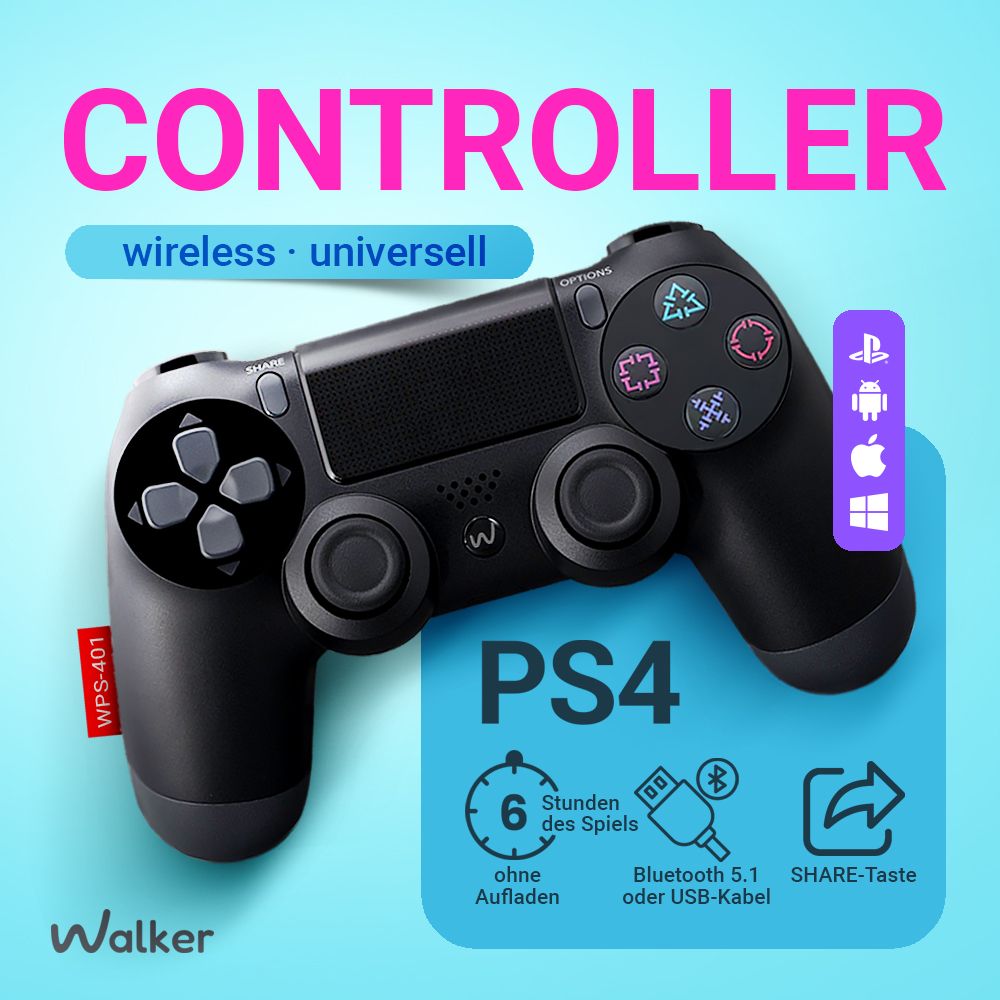
Play wirelessly on PS4 or smartphone (up to 10 m without lag) or connect to a PC via USB cable. No drivers, just Plug and Play.
Multiple devices - one gamepad
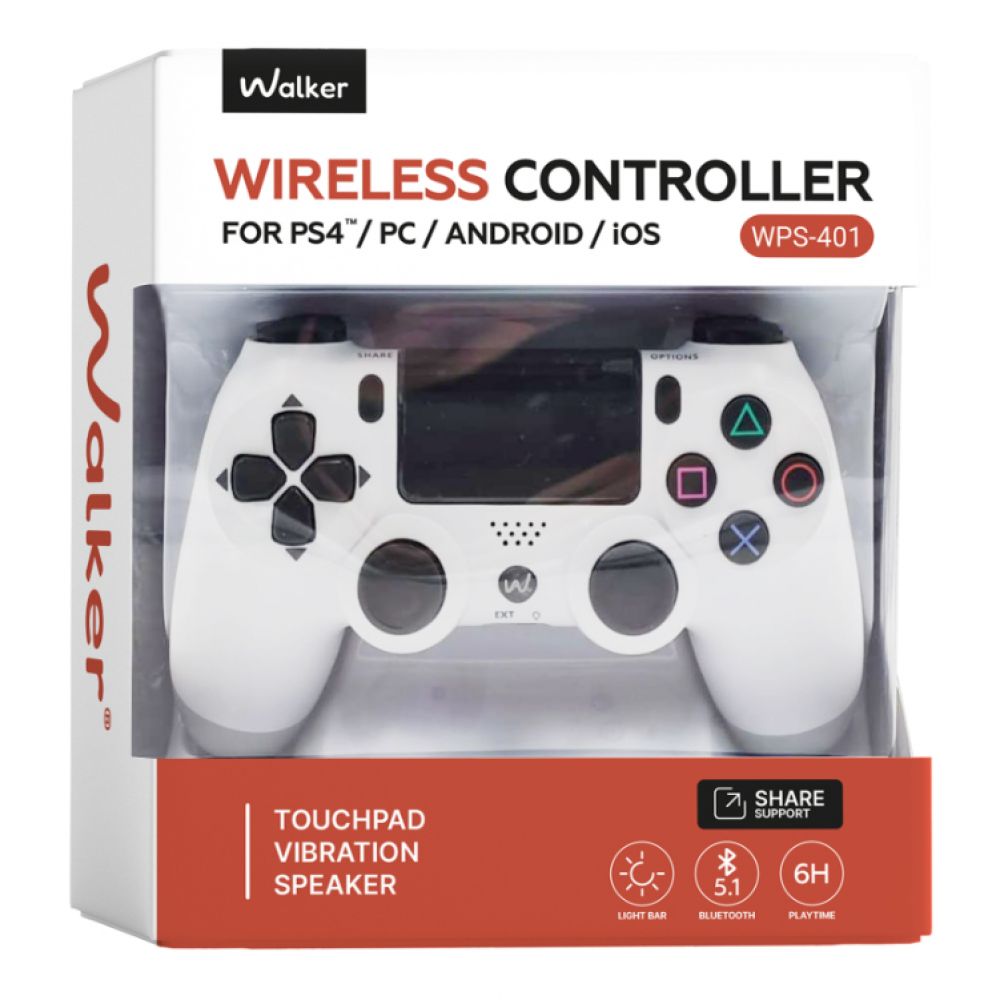
Compatible with PS4, PC (Windows 7/10/11), Android 10+, and iOS 13+. Can be used for consoles, mobile gaming, or PC games. One gamepad for all occasions.
Capacious battery
The built-in 600 mAh battery provides up to 6 hours of active play. A full charge takes only 3 hours.

How to connect the WALKER WPS-401 gamepad to the smartphone

1. Turn on the connection mode
Press and hold the W and Share buttons simultaneously for 5 seconds until the indicator light starts flashing rapidly — this means that the gamepad is ready to connect.

2. Connect to the smartphone
Open Bluetooth on your smartphone and find the “Wireless Controller” on the list. Select it to connect.

3. Settings in games
In the app or the game, select the “Joystick” control option. If the game doesn't recognize the gamepad, you might need to install additional software.


How to connect the WALKER WPS-401 gamepad to PS4

1. Connecting via USB cable (recommended method)

Connect the gamepad to PS4 using a USB cable.

Use a high-quality cable for data transfer.

Turn on the gamepad.

Press the W (Home) button — the console will automatically recognize the controller.

Confirm the connection.

The light indicator on the gamepad will stop flashing and stay lit.

After that, the gamepad can be used wirelessly — the PS4 has already “paired” it.

2. Connecting via Bluetooth

Turn on the gamepad connection mode.

Press and hold the W and Share buttons simultaneously for about 5 seconds until the gamepad's light indicator starts flashing rapidly.

Open the PS4 settings.

Menu: Settings → Devices → Bluetooth Devices

Find the gamepad in the list.

Select the “Wireless Controller” device.

Confirm the connection.

When the indicator stops flashing, it means that the connection has been established.

Tips for when you can't connect directly via Bluetooth

First, try connecting the gamepad via USB so that the PS4 “recognizes” the gamepad.

Make sure the controller is in pairing mode (the gamepad’s light indicator is flashing).

If the device does not appear in the “Bluetooth Devices” connection list, restart the PS4 and repeat the procedure.


How to connect the WALKER WPS-401 gamepad to a PC via Bluetooth

1. Turn on the gamepad connection mode

Press and hold the W and Share buttons simultaneously for about 5 seconds until the light indicator starts flashing, which means that the gamepad is ready to connect.

2. Activate Bluetooth on your computer

Turn on Bluetooth in Windows:

Start → Settings → Devices → Bluetooth & other devices → Add Bluetooth device

A list of available devices will appear — select “Wireless Controller”.

3. Confirm the connection

After a successful connection, the indicator on the gamepad will stop flashing.

Important: additional software

For the gamepad to work correctly with most PC games, you may need an Xbox controller emulator.

You can download it from the following link: https://www.x360ce.com/

After installing:

open the program

configure the buttons for your controller

save the configuration

start the game

21 InStock

Wireless Gamepad WALKER WPS-401 black

Item No.: 2710000330585
In stock
Quantity
Compatible
Windows 7–11, Android 10 oder höher, PlayStation, iOS 13 oder höher
Brand name
WALKER
Connection interface
Micro, Bluetooth
Nominal capacity, mAh
600mAh
Bluetooth version
5.1
Range, m
8-10m
Battery life (hours)
6
Full charging time (hours)
3
Voltage, V
5V
Temperature range
0-70°C
Wireless Gamepad WALKER WPS-401 black
Compatible
Windows 7–11, Android 10 oder höher, PlayStation, iOS 13 oder höher
Brand name
WALKER
Connection interface
Micro, Bluetooth
Nominal capacity, mAh
600mAh
Bluetooth version
5.1
Range, m
8-10m
Battery life (hours)
6
Full charging time (hours)
3
Voltage, V
5V
Temperature range
0-70°C
Material
ABS
Color
black
Size, mm
160*100*55mm
Weight
190g
Item No.: 2710000330585
In stock
Wireless Gamepad WALKER WPS-401 black

Comfortable, versatile gamepad for modern gamers
Light indication
The gamepad is equipped with LED lighting that changes color depending on the game status, connection type, or selected mode. This not only adds to the aesthetics, but also makes gameplay more intuitive.
Share button
Take screenshots, record videos, or start streaming with just one click. The SHARE button provides easy access to creating content from the game, just like on the official Sony gamepad.
Touchpad
Tactile control right from the panel. Responds to gestures, touches, and scrolling — supported in many modern PS4 games. This feature is familiar to players who have already used DualShock.
Gesture and motion support
A built-in accelerometer and gyroscope allow the gamepad to track the user's movements and gestures, adding another layer of interactivity.
Built-in speaker
A separate audio channel for additional game effects. Allows you to hear unique sounds directly from the gamepad, such as signals or voice prompts.
Vibration function
Two independent vibration motors provide clear feedback. The realistic feel of explosions, hits, or collisions enhances the immersive gaming experience.
Dual connection: Bluetooth 5.1 + USB
Play wirelessly on PS4 or smartphone (up to 10 m without lag) or connect to a PC via USB cable. No drivers, just Plug and Play.
Multiple devices - one gamepad
Compatible with PS4, PC (Windows 7/10/11), Android 10+, and iOS 13+. Can be used for consoles, mobile gaming, or PC games. One gamepad for all occasions.
Capacious battery
The built-in 600 mAh battery provides up to 6 hours of active play. A full charge takes only 3 hours.

How to connect the WALKER WPS-401 gamepad to the smartphone

1. Turn on the connection mode
Press and hold the W and Share buttons simultaneously for 5 seconds until the indicator light starts flashing rapidly — this means that the gamepad is ready to connect.

2. Connect to the smartphone
Open Bluetooth on your smartphone and find the “Wireless Controller” on the list. Select it to connect.

3. Settings in games
In the app or the game, select the “Joystick” control option. If the game doesn't recognize the gamepad, you might need to install additional software.


How to connect the WALKER WPS-401 gamepad to PS4

1. Connecting via USB cable (recommended method)

Connect the gamepad to PS4 using a USB cable.

Use a high-quality cable for data transfer.

Turn on the gamepad.

Press the W (Home) button — the console will automatically recognize the controller.

Confirm the connection.

The light indicator on the gamepad will stop flashing and stay lit.

After that, the gamepad can be used wirelessly — the PS4 has already “paired” it.

2. Connecting via Bluetooth

Turn on the gamepad connection mode.

Press and hold the W and Share buttons simultaneously for about 5 seconds until the gamepad's light indicator starts flashing rapidly.

Open the PS4 settings.

Menu: Settings → Devices → Bluetooth Devices

Find the gamepad in the list.

Select the “Wireless Controller” device.

Confirm the connection.

When the indicator stops flashing, it means that the connection has been established.

Tips for when you can't connect directly via Bluetooth

First, try connecting the gamepad via USB so that the PS4 “recognizes” the gamepad.

Make sure the controller is in pairing mode (the gamepad’s light indicator is flashing).

If the device does not appear in the “Bluetooth Devices” connection list, restart the PS4 and repeat the procedure.


How to connect the WALKER WPS-401 gamepad to a PC via Bluetooth

1. Turn on the gamepad connection mode

Press and hold the W and Share buttons simultaneously for about 5 seconds until the light indicator starts flashing, which means that the gamepad is ready to connect.

2. Activate Bluetooth on your computer

Turn on Bluetooth in Windows:

Start → Settings → Devices → Bluetooth & other devices → Add Bluetooth device

A list of available devices will appear — select “Wireless Controller”.

3. Confirm the connection

After a successful connection, the indicator on the gamepad will stop flashing.

Important: additional software

For the gamepad to work correctly with most PC games, you may need an Xbox controller emulator.

You can download it from the following link: https://www.x360ce.com/

After installing:

open the program

configure the buttons for your controller

save the configuration

start the game

Item No.: 2710000330585
In stock
Wireless Gamepad WALKER WPS-401 black
Instruction WALKER WPS-401 Download
How to connect the WALKER WPS-401 gamepad Download
Related products

Comfortable, versatile gamepad for modern gamers
Light indication
The gamepad is equipped with LED lighting that changes color depending on the game status, connection type, or selected mode. This not only adds to the aesthetics, but also makes gameplay more intuitive.
Share button
Take screenshots, record videos, or start streaming with just one click. The SHARE button provides easy access to creating content from the game, just like on the official Sony gamepad.
Touchpad
Tactile control right from the panel. Responds to gestures, touches, and scrolling — supported in many modern PS4 games. This feature is familiar to players who have already used DualShock.
Gesture and motion support
A built-in accelerometer and gyroscope allow the gamepad to track the user's movements and gestures, adding another layer of interactivity.
Built-in speaker
A separate audio channel for additional game effects. Allows you to hear unique sounds directly from the gamepad, such as signals or voice prompts.
Vibration function
Two independent vibration motors provide clear feedback. The realistic feel of explosions, hits, or collisions enhances the immersive gaming experience.
Dual connection: Bluetooth 5.1 + USB
Play wirelessly on PS4 or smartphone (up to 10 m without lag) or connect to a PC via USB cable. No drivers, just Plug and Play.
Multiple devices - one gamepad
Compatible with PS4, PC (Windows 7/10/11), Android 10+, and iOS 13+. Can be used for consoles, mobile gaming, or PC games. One gamepad for all occasions.
Capacious battery
The built-in 600 mAh battery provides up to 6 hours of active play. A full charge takes only 3 hours.

How to connect the WALKER WPS-401 gamepad to the smartphone

1. Turn on the connection mode
Press and hold the W and Share buttons simultaneously for 5 seconds until the indicator light starts flashing rapidly — this means that the gamepad is ready to connect.

2. Connect to the smartphone
Open Bluetooth on your smartphone and find the “Wireless Controller” on the list. Select it to connect.

3. Settings in games
In the app or the game, select the “Joystick” control option. If the game doesn't recognize the gamepad, you might need to install additional software.


How to connect the WALKER WPS-401 gamepad to PS4

1. Connecting via USB cable (recommended method)

Connect the gamepad to PS4 using a USB cable.

Use a high-quality cable for data transfer.

Turn on the gamepad.

Press the W (Home) button — the console will automatically recognize the controller.

Confirm the connection.

The light indicator on the gamepad will stop flashing and stay lit.

After that, the gamepad can be used wirelessly — the PS4 has already “paired” it.

2. Connecting via Bluetooth

Turn on the gamepad connection mode.

Press and hold the W and Share buttons simultaneously for about 5 seconds until the gamepad's light indicator starts flashing rapidly.

Open the PS4 settings.

Menu: Settings → Devices → Bluetooth Devices

Find the gamepad in the list.

Select the “Wireless Controller” device.

Confirm the connection.

When the indicator stops flashing, it means that the connection has been established.

Tips for when you can't connect directly via Bluetooth

First, try connecting the gamepad via USB so that the PS4 “recognizes” the gamepad.

Make sure the controller is in pairing mode (the gamepad’s light indicator is flashing).

If the device does not appear in the “Bluetooth Devices” connection list, restart the PS4 and repeat the procedure.


How to connect the WALKER WPS-401 gamepad to a PC via Bluetooth

1. Turn on the gamepad connection mode

Press and hold the W and Share buttons simultaneously for about 5 seconds until the light indicator starts flashing, which means that the gamepad is ready to connect.

2. Activate Bluetooth on your computer

Turn on Bluetooth in Windows:

Start → Settings → Devices → Bluetooth & other devices → Add Bluetooth device

A list of available devices will appear — select “Wireless Controller”.

3. Confirm the connection

After a successful connection, the indicator on the gamepad will stop flashing.

Important: additional software

For the gamepad to work correctly with most PC games, you may need an Xbox controller emulator.

You can download it from the following link: https://www.x360ce.com/

After installing:

open the program

configure the buttons for your controller

save the configuration

start the game